
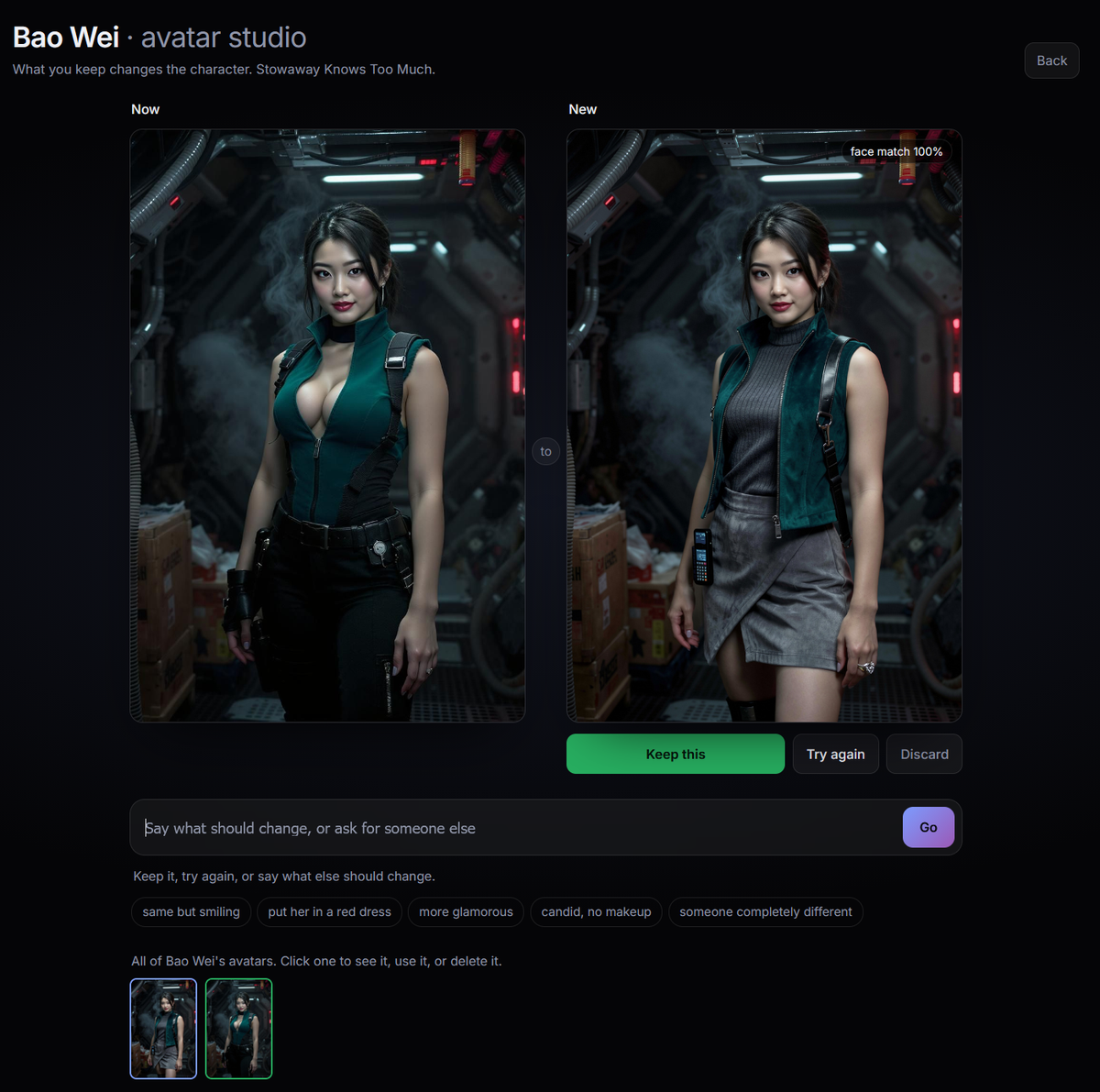
The New Avatar Studio
September 19, 2026
There is now one place to change how a character looks, and it works the way you would explain it to a friend.
The new Avatar Studio replaces the old Photos page and the old avatar chat. No forms, no seeds, no settings to learn. You see the current portrait on the left, you say what should change, and the new version appears on the right.
Say it in plain words
Type what you want and press Go:
- "same but smiling"
- "put her in a red dress"
- "more glamorous"
- "candid, no makeup"
- "someone completely different"
The studio works out whether you want the same person with a change, or a new person entirely, and picks the right path.
Keep the face, or ask for someone new
When you ask for a change, the studio starts from the current avatar as its reference, so the face stays the face. Change the outfit, the mood, the setting, or the whole look, and it is still recognizably your character.
Ask for someone else and the studio recasts from scratch, using the full character sheet plus your direction. You get three candidates to pick from.
Now and New, side by side
Every result appears beside the current avatar so you can compare before you decide. Keep it, try again with a tweak, or go back. Earlier results stay on the page while you work, so you can return to one you liked.
Your whole gallery in one strip
Every avatar the character has ever had lives at the bottom of the studio. The one in use is marked. Click any of them to see it full size, set it as the avatar, or delete it.
This session, or everywhere
Open the studio from inside a story and your changes apply to that playthrough. If you own the character, a switch lets you also update them everywhere, so the new look carries over to future stories. Characters you do not own can still be restyled inside your own session, and nobody else's story is touched.
Where to find it
- From a story: open the menu and choose Avatar studio, or use it from the in-session character edit page.
- From a character page: the Avatar studio button on the edit and detail pages.
On mobile, there is also a small peek button on the portrait during play that hides the dialogue for a moment so you can see the whole avatar. It comes back on the next line.